Table of Contents
DOCSRECORDING SHAVES WITH YOUR MOBILE PHONE
Recording Shaves with Your Mobile Phone
Loading last updated info...
Need to YakShave from your phone? You’ve got 3 easy options:
- Option 1: Record with your mobile phone camera
- Option 2: Record your mobile screen (Android / iOS)
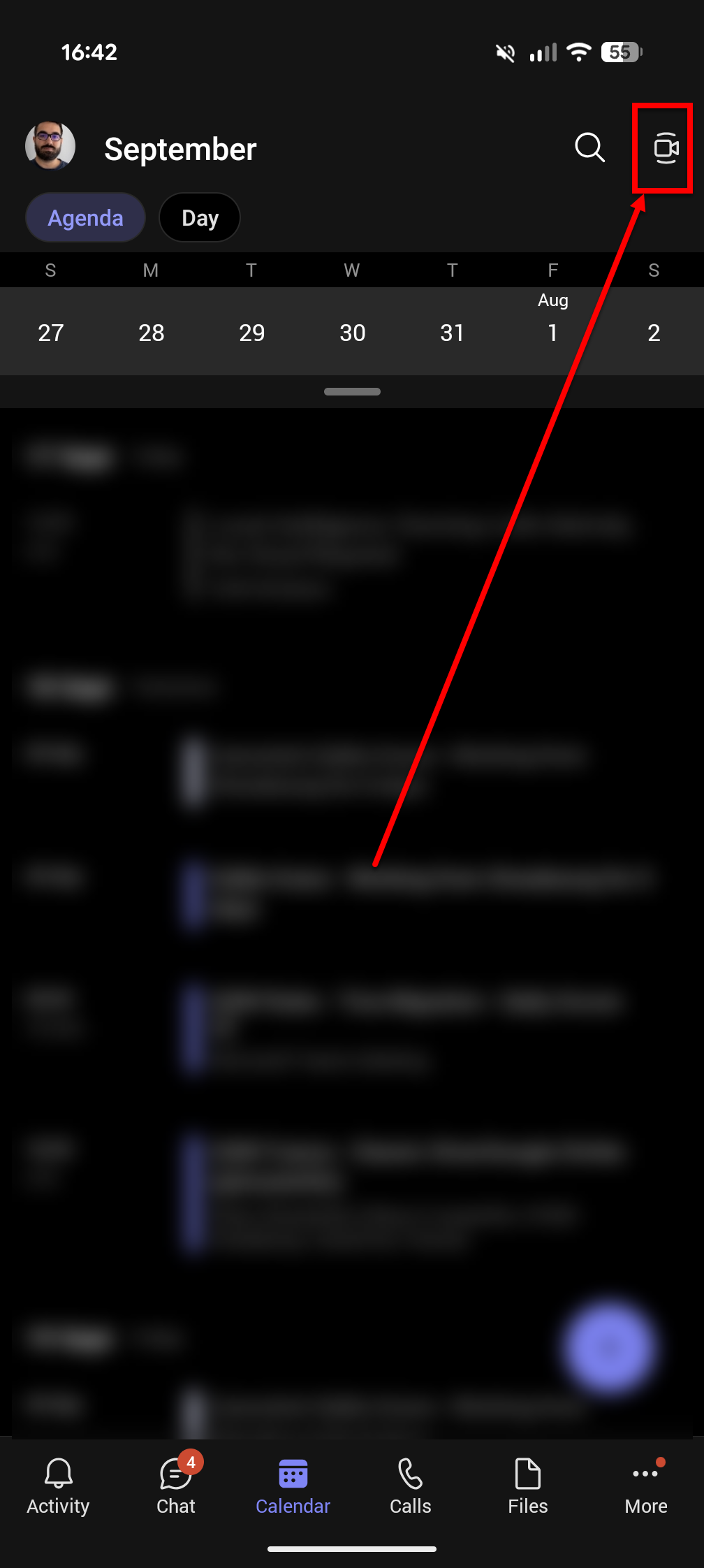
- Option 3: Use Microsoft Teams mobile app
Prerequisites
- OneDrive App installed, signed in to the account you want the YakShave to be picked up from


- Ensure that YakShaver is “ask“ or ”on"
Option 1: Recording with your mobile phone camera
You can record either with the camera app or by recording your screen. In both cases, upload the video to OneDrive → Recordings, and YakShaver will automatically process it.
- Open the Camera app → switch to Video mode.
- Tap Record and capture your YakShave.
- Your video will be saved in your phone’s Photos/Gallery app.
- Open the saved video → Share/Upload to OneDrive → Recordings.
- YakShaver will automatically pick up the video and update you on Teams.
Option 2: Record your mobile screen
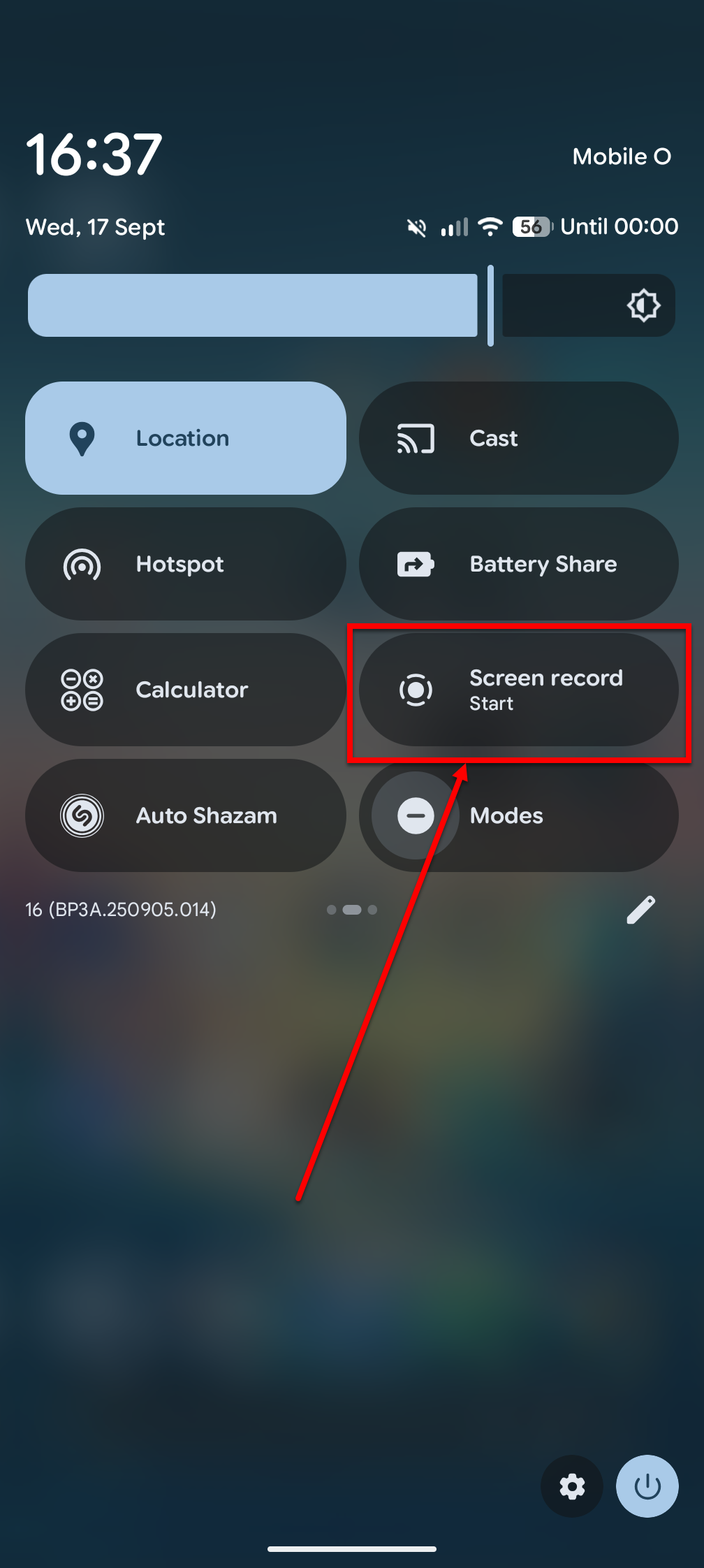
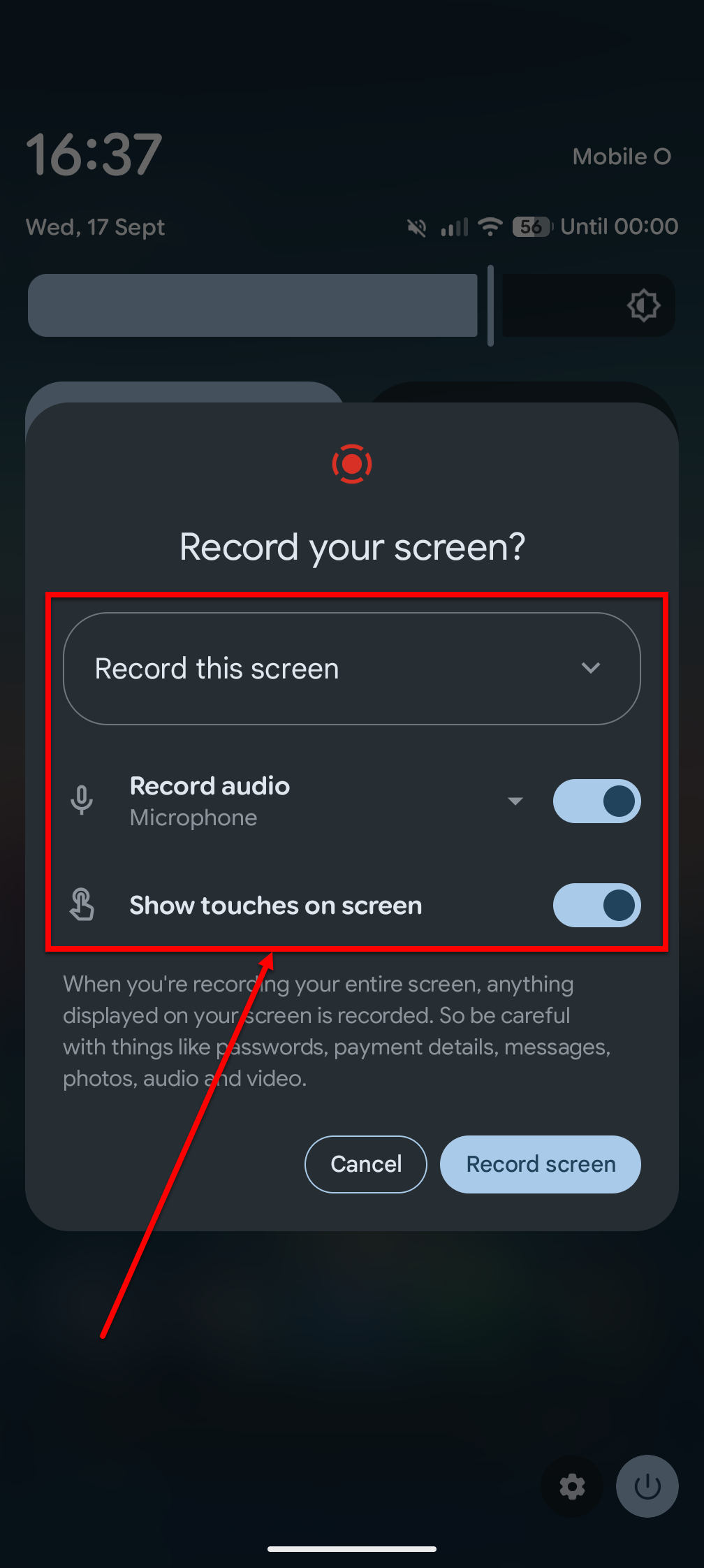
2A: Screen recording on Android
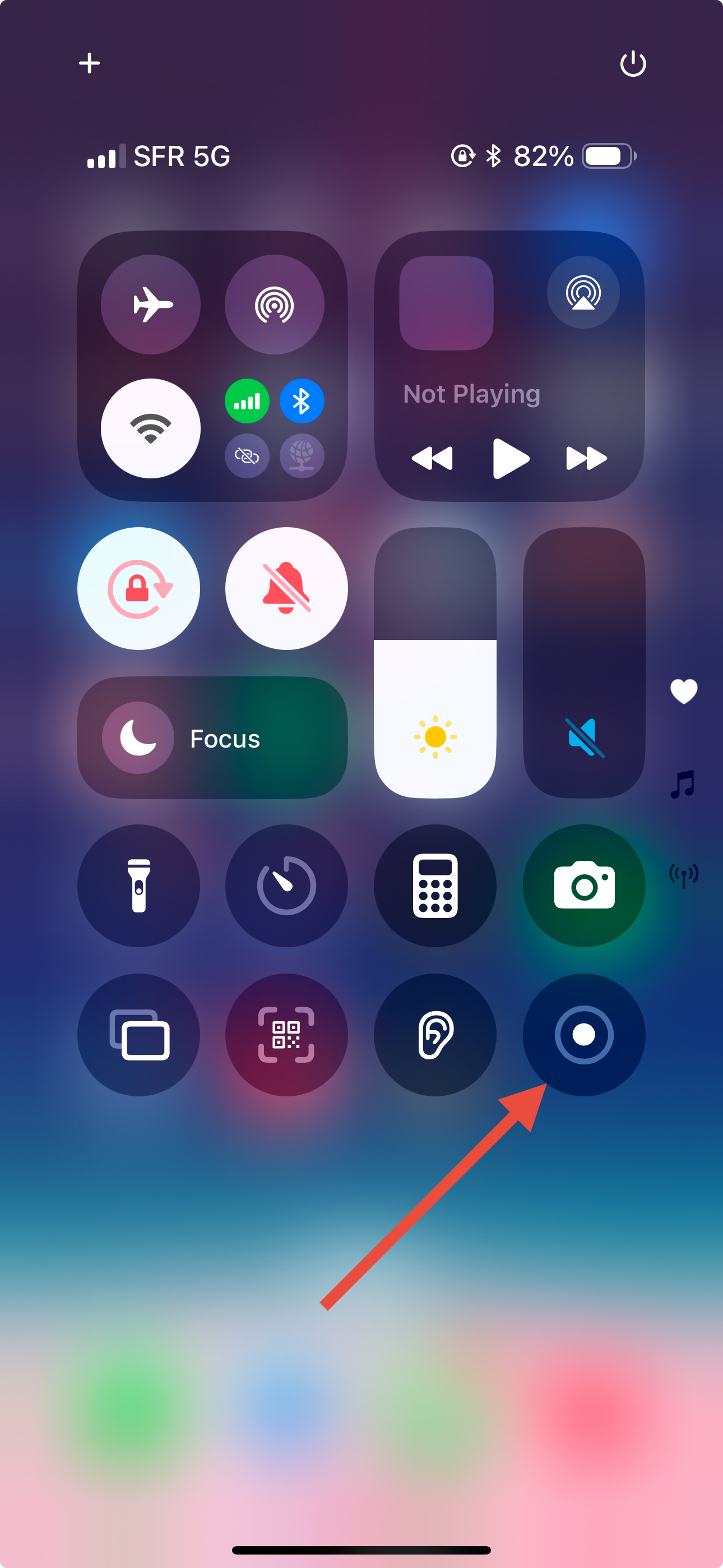
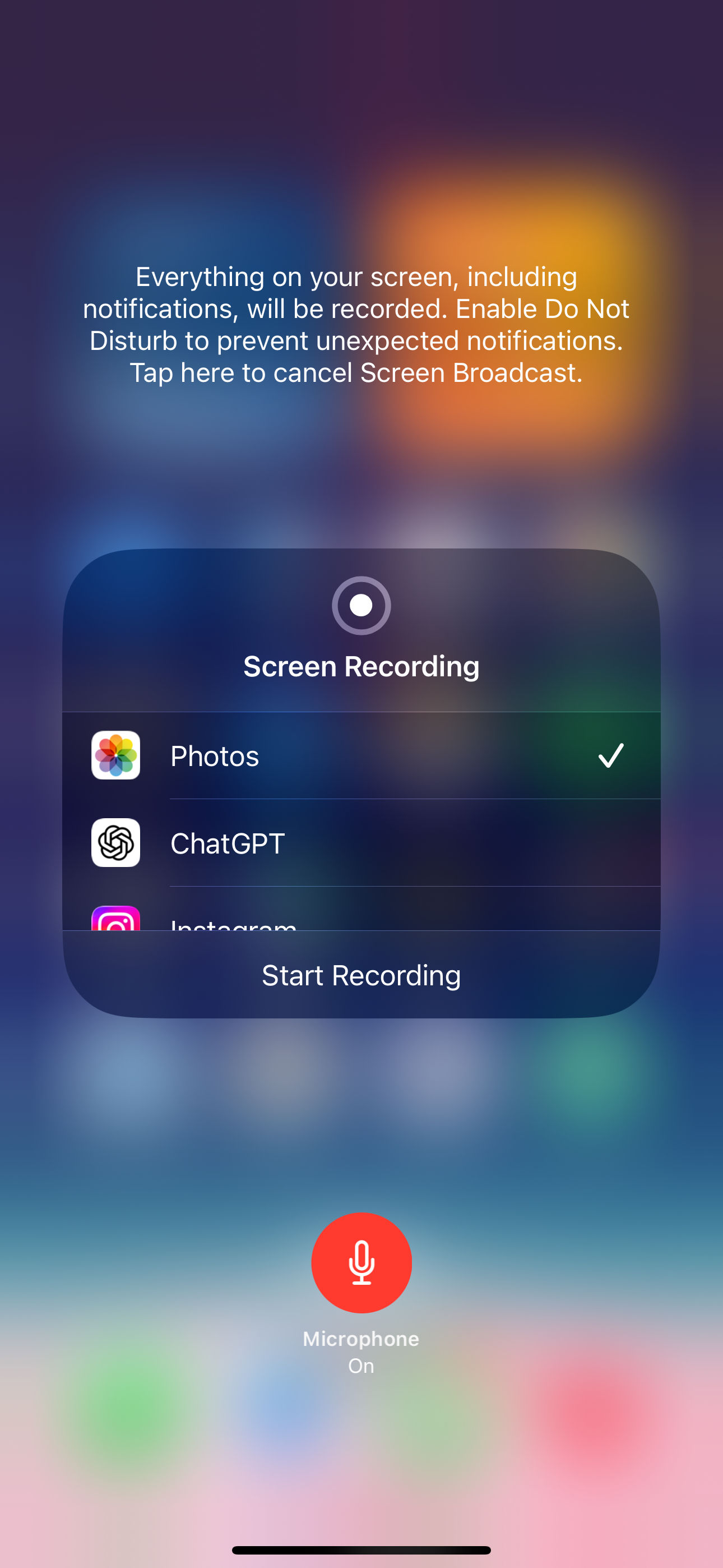
2B: Screen recording on iOS
Option 3: Use Microsoft Teams mobile app
Watch a quick example in action

Video: YakShaver - fix the broken Coffee Machine ☕️ ❌ - English (1 min)